LED Switch Tool
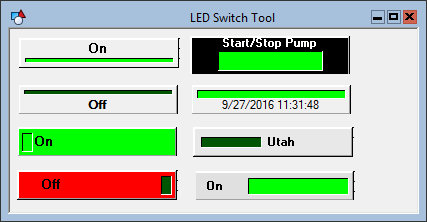
 An LED Switch Tool object is a toggle for digital commands. The object must be associated with a digital point. The value of this point sets the position of the switch, and when the position is changed the toggled value is sent as the "value" of the command.
|
LED Switch Tool |
Use the point identifier properties to form a fully qualified CygNet tag string. The point identifier properties are [1:SiteService], [2:Point ID], [3:Long Point ID], [4:Facility ID], and [5:UDC]. If the object is on a templated screen, only use the [5:UDC] property.
Optionally, the switch can be configured to prompt the user to confirm the command before it is sent.
The switch plate contains an LED bar and a label. The label shows a point attribute and the LED bar shows the point state. By default the label shows the point value. It can be changed to a different point attribute using the [DisplayItem] property. To show a static label, set [DisplayItem] property to Text and then type the text for the label in the Text property. The CaptionAlignment, CaptionFont, CaptionFontColor, and WordWrap properties can be used to customize the label display.
The Text property of a LED Switch Tool object can contain both static and dynamic text. The dynamic portion of the string is built using tokens, See Using Text Tokens for more information about tokens and formatting token strings.
The LED is illuminated if the digital point is “on.” The active ("on") color is specified by the ActiveColor property. The inactive color is one-third the intensity of the active color. The IndicatorAlignment, IndicatorHeight, IndicatorMargin, and IndicatorWidth properties can be used to customize the LED. Set the IndicatorWidth to 0 to hide the LED.
To use a custom LED on the switch plate use the switch’s Glyph property. Be aware that a custom LED is a static image and will not change color to reflect the point value.
The [AlarmElement] property can be set to show the point state color in the object’s Background Color or not at all (None). The [UseCustomStateColors] property enables the object to use its own custom point state colors. If set to 1 - Yes, the colors used are those defined by the object’s [CustomStateColors] property. If set to 0 - No, the colors are those defined by the TheView’s [CustomStateColors] property.
CygNet Studio also has the following similar tools:

|
Arrow LED Tool, which displays an arrow-shaped LED object that indicates a status by color. |

|
Diamond LED Tool, which displays an diamond-shaped LED object that indicates a status by color. |

|
LED Bar Tool, which displays a bar-shaped LED objects that shows an analog value in relation to segments. |

|
Round LED Tool, which displays a round object that indicates a status by illuminating the LED. |
More:
 LED Switch Tool - Command Name
LED Switch Tool - Command Prompt

